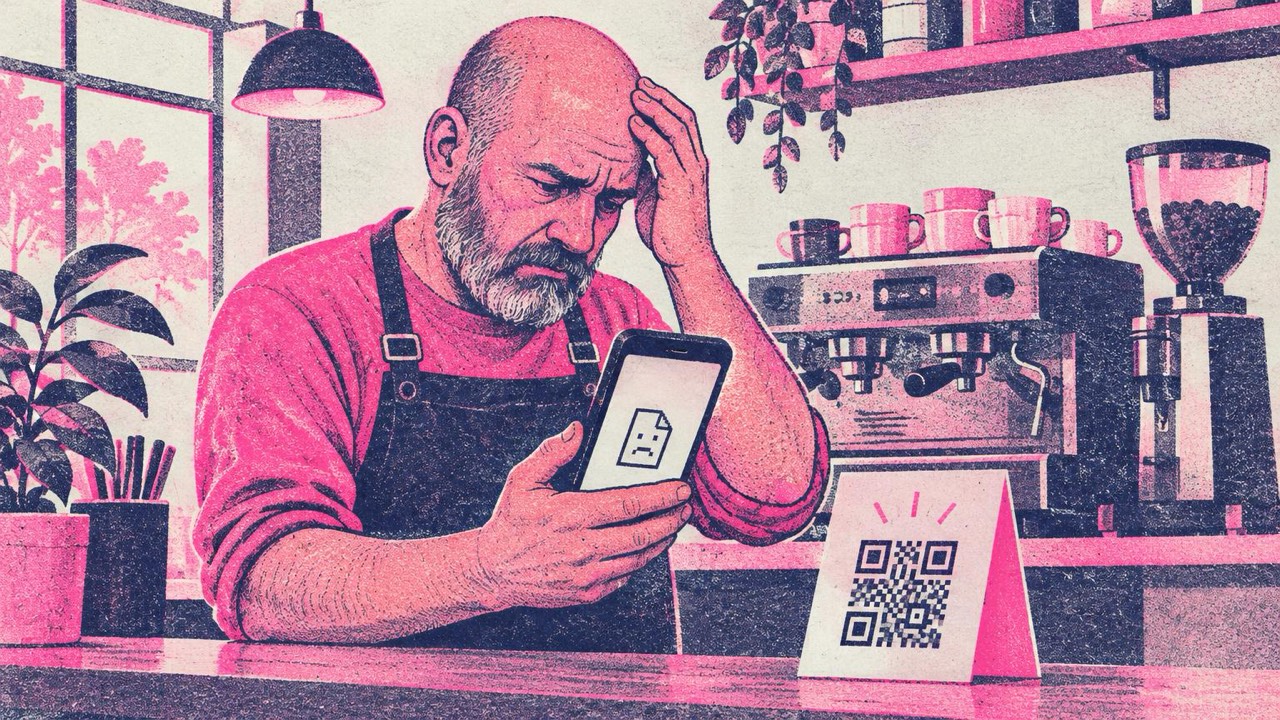
The menus are printed, the table tents are laminated, the flyers went out last spring. Then a guest says the code doesn’t work. You scan it yourself and get an error page, a “this code is inactive” notice, or an offer to upgrade your plan. Nothing on the paper has changed, so what did?
A QR code is only a container for a link or some text. If it scans but leads to the wrong place, the problem is almost always the link, not the square. If it doesn’t scan at all, the problem is the print. The fix depends on which one it is.
The four usual causes
1. The code was a dynamic code and it expired. This is the most common reason a code that worked before stops working. Many generators don’t put your address in the code. They put in a short link on their own server, which then forwards each scan to your page. That is what lets them offer editing and scan counts, but the code only works while the service keeps that short link active. When a free trial ends, a subscription lapses or a card payment fails, many services switch the link off or show an upgrade page instead of your menu. The printed code is fine; the forwarding behind it is gone.
2. The page behind it moved or was deleted. The code still points to the right place, but that place no longer exists: a website was rebuilt and addresses changed, a PDF was replaced on a file-sharing service, a form was closed, a domain was not renewed.
3. The print doesn’t scan. The code is too small for the distance, the colours have too little contrast, it is printed on glossy material that reflects light, it sits on a fold, or it has faded and been scratched. In this case the phone doesn’t open anything at all.
4. The link was wrong from the start. A typo, a draft or staging address, a link that only works when you are logged in. These usually fail from day one, but sometimes nobody tests until much later.
How to tell which one it is
Scan the code and look at the address it opens before you look at the page. Most phone cameras show the address in a small banner before opening it. Or use the QR code reader: point your camera at the code or upload a photo of it, and it shows the full text stored inside.
Then compare:
- The address is a short link on a domain you don’t recognise or don’t own. You are looking at a redirect. The reader on this site warns you when a code opens a known short-link or dynamic QR service: it works only while that service keeps the link active. If the page now shows an error or an upgrade offer, cause 1 is your answer.
- The address is your own website, but the page is missing. Cause 2. The code is fine; restore the page or put a redirect on your own site from the old address to the new one.
- Nothing scans at all, with several phones. Cause 3. Look at size, contrast and damage.
- The address is clearly wrong. Cause 4.
What you can do now
If it’s an expired dynamic code, you have two options. You can renew or reactivate the plan with the provider who made it, if you still have access to that account; the printed codes usually come back to life. Or you can stop depending on it: make a new static code that contains your own address and replace the old one. A static code stores the address itself, so there is no service in between that can switch it off. The static vs dynamic comparison explains the trade-off in detail.
If the page moved, fix it on your side. Bring the page back at the old address or set up a redirect from the old address to the new one on your own website. Every printed code starts working again without reprinting anything.
If it doesn’t scan, reprint bigger and with more contrast. The print guide gives the rule: the code should be about one tenth of the scanning distance and never smaller than 2 cm (0.8 in), dark on a light background, on matte material.
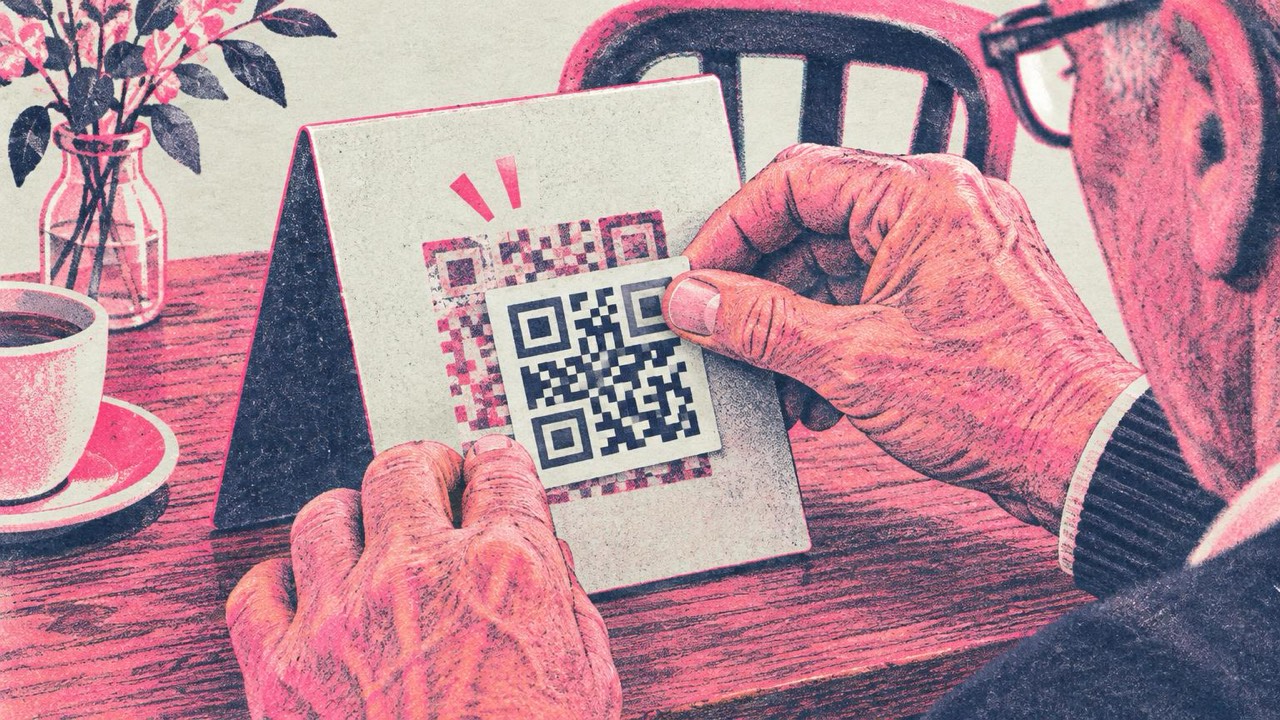
If you can’t reprint, because the item is packaging, a sign or a thousand menus, cover the old code with a sticker. Print the new code on sticker sheets slightly bigger than the old one so it hides the old pattern completely. Two half-visible codes confuse phones.
Whatever you print now, make the new code point to a page you control, ideally on your own domain: yourcafe.com/menu rather than a file-sharing link or someone else’s short link. When the menu changes, you change that page. The code never needs to change again. You can make one in the main generator: paste the address, download SVG for print.
How to stop it happening again
Before you print anything with a QR code on it, check what is inside it. Scan a test print with the reader and read the address. If it is your own address, the code will keep working as long as your page does. If it is a short link on someone else’s domain, find out what happens to that link when you stop paying, or don’t use it. The guide to a free QR code generator with no expiration lists what to check before you choose one.
Restaurants and cafés are hit hardest, because menus sit on tables for years. The restaurant guide and the guide to QR codes on printed materials cover placement and sizing for those cases.
Checklist
- Scan the code and read the address before looking at the page
- Short link on a domain you don’t own: likely an expired dynamic code
- Your own address but a missing page: restore the page or redirect it
- Doesn’t scan at all: size, contrast, gloss or damage
- New code contains your own address, not a third-party redirect
- That address is a page you control and will keep online
- Can’t reprint: a larger sticker that fully covers the old code
- Test print scanned with several phones before the full run