You need a QR code for a menu, a flyer or a product label, and you want it to work for as long as the paper exists. You search for a free generator, make a code in a minute and download it. The question you can’t answer from the download page is whether that code will still open your link next year.
You can answer it yourself, in a few minutes, before you print anything. Here is what to check.
1. Does the code contain your link directly?
This is the one check that matters most. A code either stores your address itself (a static code) or stores a short link on the generator’s server, which forwards scans to your address (a dynamic code). Static codes can’t expire. Dynamic codes work only while the service keeps the redirect active, and many switch them off when a free trial or plan ends. The static vs dynamic comparison explains the difference.
The download page may not say which one you got, so test it:
- Download the code and open it on your screen, or print it.
- Scan it with the QR code reader or your phone’s camera.
- Read the address it shows before the page opens.
If it is exactly the address you typed, the code is static. If it is a short link on another domain, it is a redirect, and the reader on this site will warn you when that domain is a known short-link or dynamic QR service. A redirect is not always bad, but you should know you are depending on it.
2. Is an account required?
A generator that asks you to sign up before you can download often does so because the code is tied to that account: a plan, a trial, a dashboard. That is normal for dynamic services. For a code you just want to print and forget, you shouldn’t need an account at all. No sign-up usually also means no email to manage and no trial clock running.
3. Download formats
You want both:
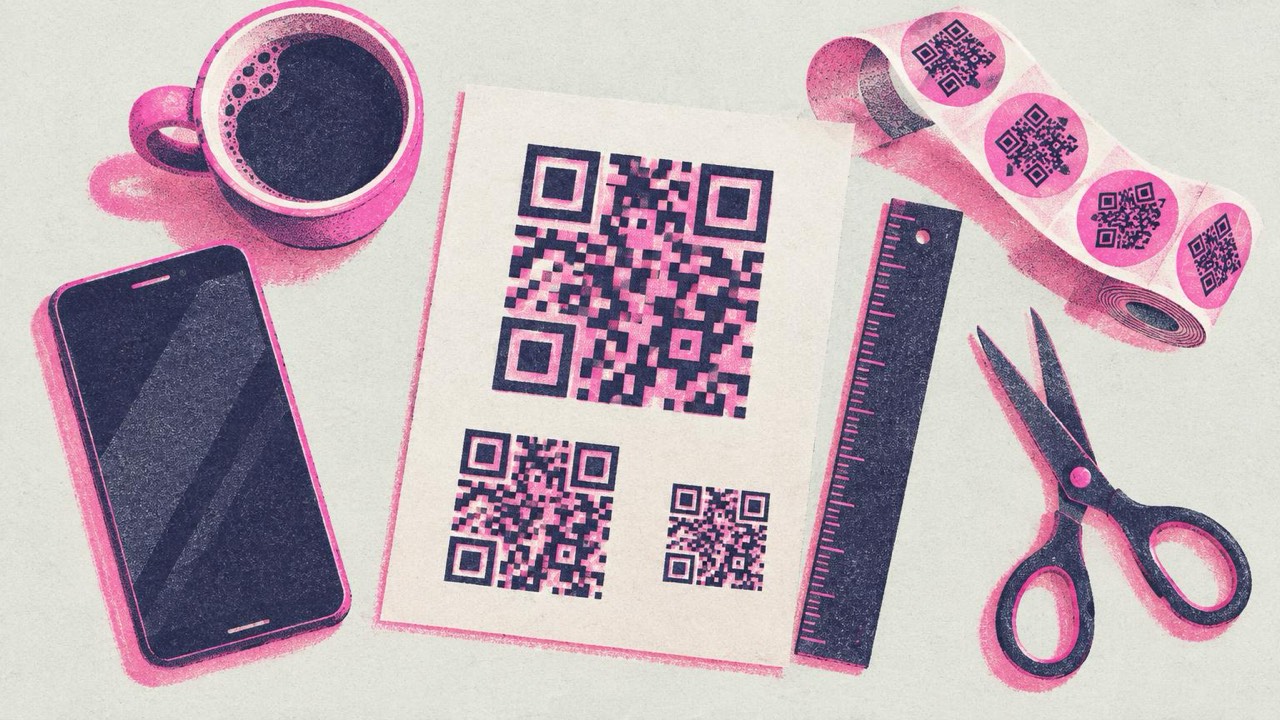
- SVG for anything printed. It is a vector file, so it stays sharp at any size, and print shops prefer it.
- PNG for screens, documents and quick prints. For posters, at least 2048 px wide.
A generator that only offers a small PNG, or locks SVG behind a plan, will cause trouble later at the print shop.
4. No watermark
Some free tiers add a logo, a label or a frame you can’t remove. Check the downloaded file itself, not the preview. Your code should contain only your code and the design you chose.
5. Commercial use allowed
Menus, packaging and flyers are commercial use. Look for a plain statement that you can use the codes for business without attribution. If the terms are silent or vague, ask before printing a run of packaging.
6. Read the terms for expiry language
Search the terms and the pricing page for words like trial, expire, deactivate, inactive, scan limit and plan ends. They tell you what happens to existing codes when you stop paying. A generator that makes static codes has nothing to deactivate, so these words usually don’t apply to its codes at all.
One option that meets these criteria
This site, qrcode-generator-free.com, was built around these checks. Its codes are static: the main generator writes your link or text straight into the code, so there is no redirect through our server and nothing to expire. The codes keep working even if this site goes away.
- No account and no sign-up.
- The codes are made in your browser; your link and any logo stay on your device.
- PNG and SVG downloads, no watermark.
- Free for commercial use, no attribution needed.
- Styles, colours, a logo, Photo QR and frames, with each design checked for scannability as you edit.
What it doesn’t do: it can’t change a code after you print it, and it doesn’t count scans. If you need either, a dynamic service is the right tool, as long as you plan to keep paying for it. If you just need the link to be changeable, point the code at a page you control and change the page.
Whichever generator you use, run the test in step 1 on the file you actually download. That tells you more than any promise on a home page, including ours.
Test the print before the run
A code that never expires still has to scan. Before printing a full run:
- Print one copy at actual size on the real material.
- Scan it with two or three phones, including an older one, from the real distance.
- Check the address shown, then the page: it should load quickly on mobile.
The print guide has the sizing rule: about one tenth of the scanning distance, never under 2 cm (0.8 in), dark on light, matte rather than glossy. For menus see the restaurant guide; for flyers and posters, QR codes on printed materials.
If you already have codes that stopped working, why your QR code stopped working helps you find the cause and fix it without reprinting everything.
Checklist
- Scanned the downloaded code: it shows your own address, not a short link
- No account needed to make or download it
- SVG for print, PNG at 2048 px or more for posters
- No watermark in the downloaded file
- Commercial use allowed without attribution
- Terms checked for trial, expiry and deactivation wording
- Code points to a page you control, so you can change the page later
- One test print scanned with several phones before the full run