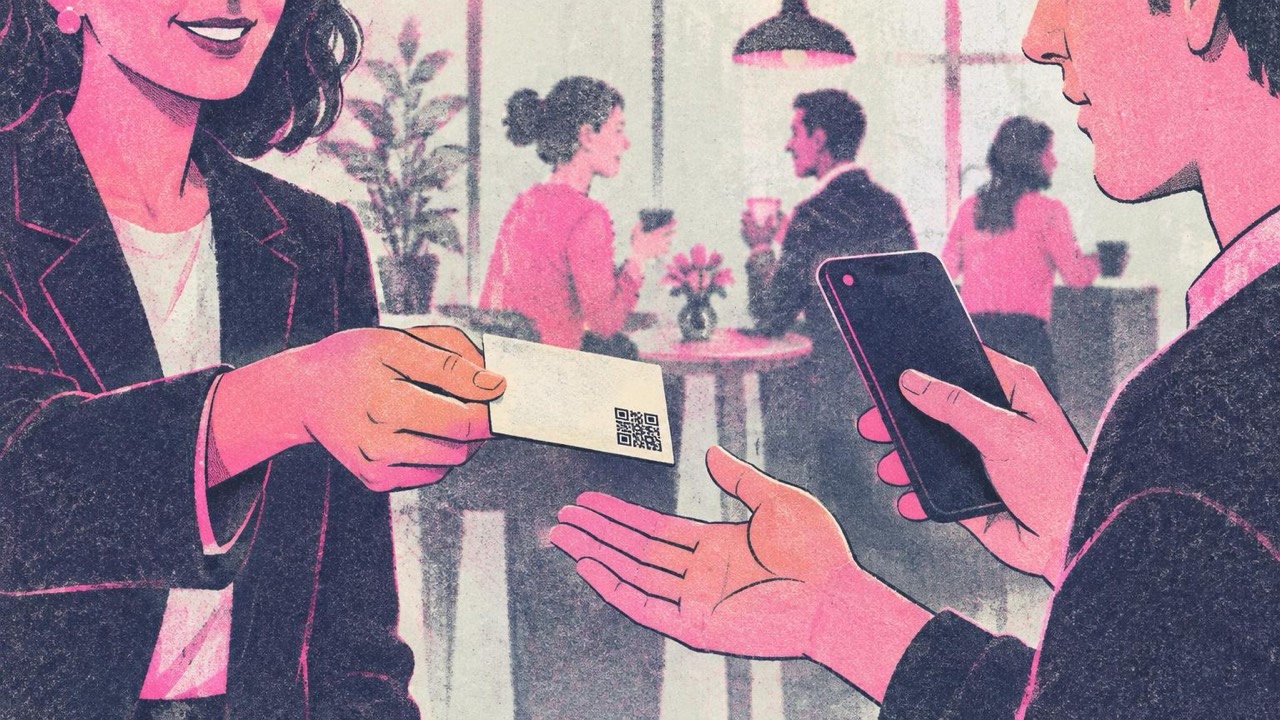
A customer pays, says the haircut looks great, and leaves. They meant to write a review. They never do, because finding the right business on Google Maps and then the review button takes more effort than the good intention lasts.
A Google review QR code removes that effort. One scan opens the review form for your business with the stars ready to tap. It works the same for a shop, a hair salon, a car workshop, a dental clinic or a bakery.
What goes into the code
The code holds a link to your review form on Google. You need a Google Business Profile for that, since reviews belong to a business listed on Google Maps. If you do not have one, creating it is free.
Then get your review link in one of these ways, the same steps shown on the Google review QR code generator:
- Search for your business name on Google while signed in to the account that manages it. Your Business Profile appears with management options.
- Choose “Ask for reviews” and copy the link it shows. It usually looks like
g.page/r/…/review. - Or use a Place ID. Find your business with Google’s Place ID Finder (linked on the generator page) and copy the ID, which starts with
ChIJ. Paste it in the same field and the generator builds the review link for you.
Paste the link or Place ID, check the preview, and download the code as PNG or SVG. SVG stays sharp at any size, so send that one to a print shop.
The code is static and never expires. Your review link does not change unless the business listing itself changes, so a printed code keeps working for years.
Where to place it
Put the code where people wait or finish. That is when they have a moment and a fresh impression.
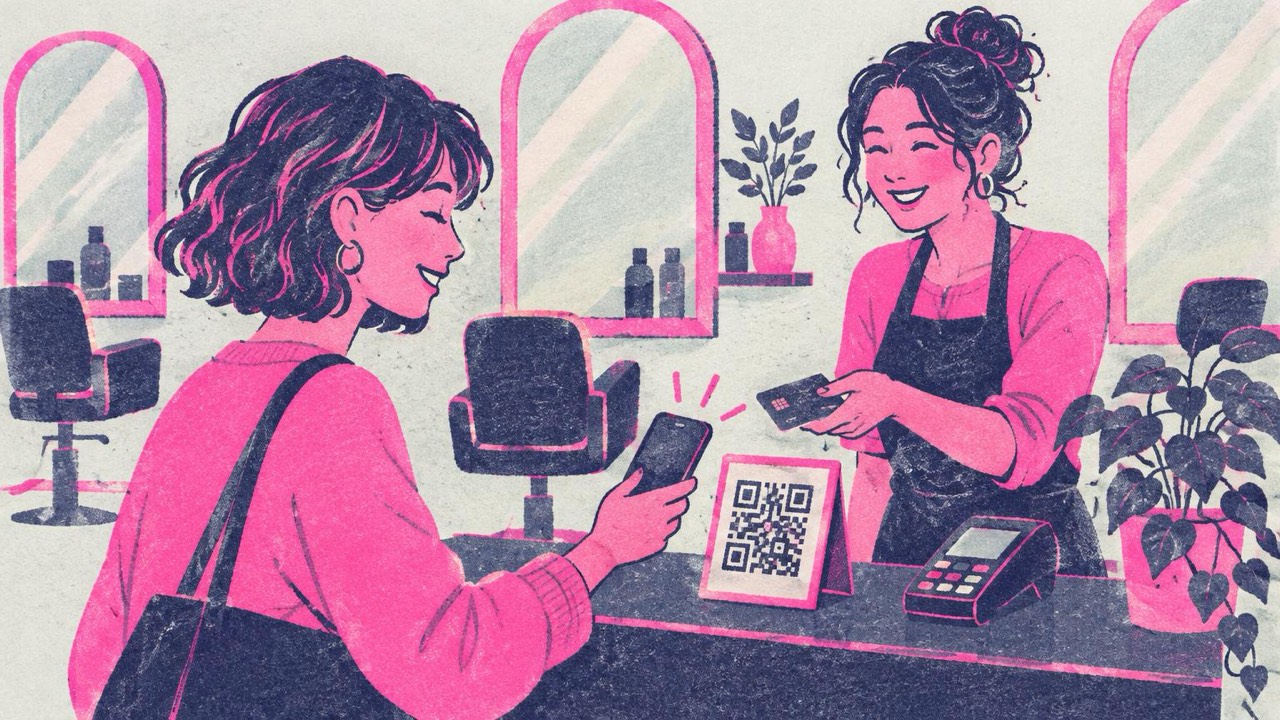
- The counter. A small stand next to the card reader, like in a salon or a shop. People look down while paying.
- Receipts. If your receipt printer or invoice template takes an image, add the code at the bottom.
- Invoices. Workshops, clinics and trades send invoices by email or on paper. A small code next to “Thank you for your business” is enough. On a PDF invoice, add a plain link too, since people reading on a phone cannot scan their own screen.
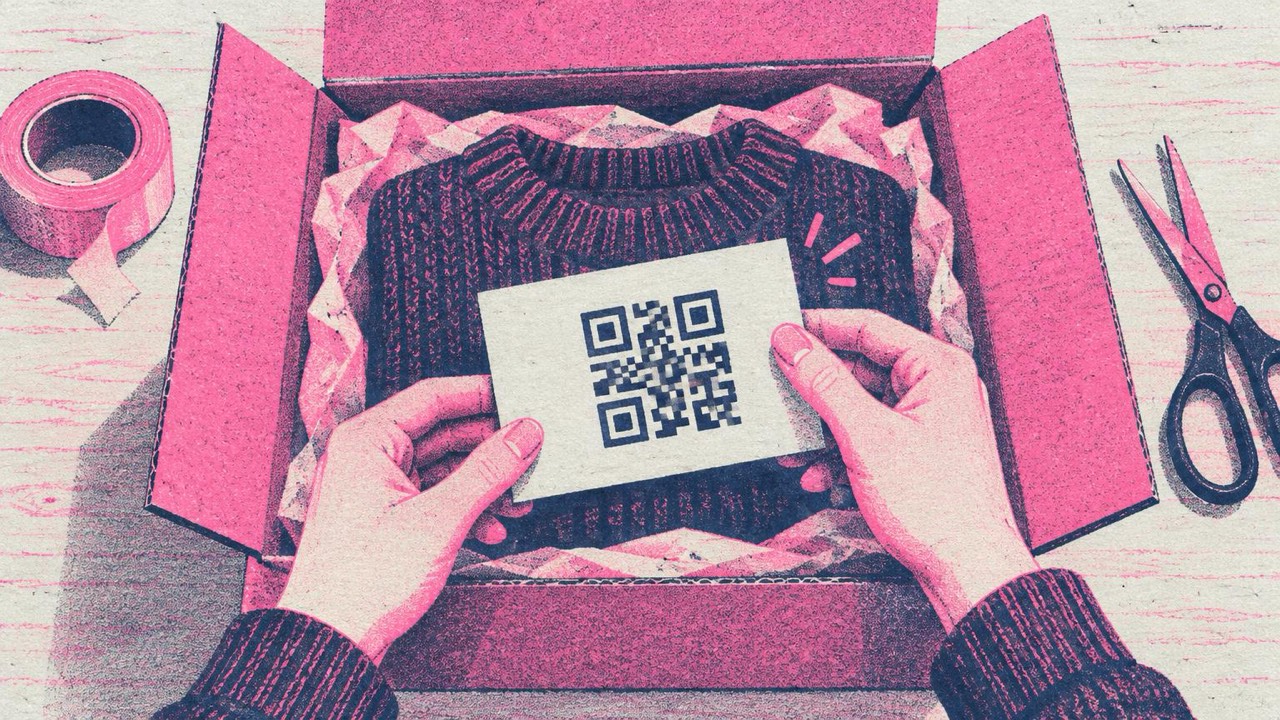
- Package inserts. For online orders, a thank-you card in the box reaches the customer at the moment they unpack.
- Waiting areas. A clinic or workshop waiting room: a framed sign on the wall or on the reception desk.
- Table tents. Cafés and restaurants can stand one on each table or put it in the bill folder.
What to say on the sign
A code without words is just a pattern. Tell people what happens when they scan and why it matters to you. Short and honest works best:
- “Enjoyed your visit? Leave us a review”
- “Tell us how we did”
- “Scan to review us on Google”
- “Your review helps other customers find us”
The Print button on the generator offers a sign, a table tent and stickers, with an editable headline and small text. The frame option can add a short label like “Review us” directly around the code, which helps on receipts and labels where there is no room for a sign.
A word from staff still beats any sign. “If you have a minute, there’s a code at the counter for a Google review” is enough. Say it to every customer, not just the ones who smiled.
Google’s rules: keep it fair
Google’s review policies are strict, and breaking them can get reviews removed. In short:
- No rewards. Do not offer discounts, free items, raffle entries or anything else in exchange for a review, positive or not.
- Do not ask only happy customers. Selecting who gets the request (sometimes called review gating) is not allowed. Show the code to everyone.
- No fake or bought reviews, and no reviews written by staff or family.
- Do not tell people what to write or which star rating to give.
A plain “tell us how we did” sign follows all of these. Answer the reviews you get, good and bad, politely. That shows future customers someone is listening.
How big to print
The print guide rule: the code should be about one tenth of the scanning distance, and never smaller than 2 cm.
- Receipt or invoice: 2–3 cm, read at arm’s length.
- Package insert or thank-you card: 3–4 cm.
- Counter stand or table tent: 5–7 cm.
- Wall sign in a waiting room, read from 1–2 m: 10–20 cm.
Use a dark code on a light background and keep a white margin around it, about four of its small squares wide. Thermal receipt printers can blur fine detail, so test a printed receipt before you rely on it. Print at 100% (“Actual size”), not “Fit to page”.
Mistakes to avoid
- Linking to your Maps listing instead of the review form. It works, but adds an extra step. Use the “Ask for reviews” link or a Place ID.
- A tiny code on a busy flyer. If it fights with ten other things, nobody scans it.
- Glossy laminate on the counter. Shop lights reflect off it. Matte paper scans more reliably.
- Mixing in other links. Want Instagram followers too? Make a separate code with the social media QR code generator and label each one clearly.
- Not testing. Scan the printed code with two or three phones before printing many.
Checklist
- Google Business Profile set up
- Review link from “Ask for reviews” or a Place ID
- Code on the counter, receipts, invoices or package inserts
- Plain wording such as “Tell us how we did”
- No rewards, and the same request to every customer
- Sized for the distance, white border kept, matte paper
- Tested with several phones