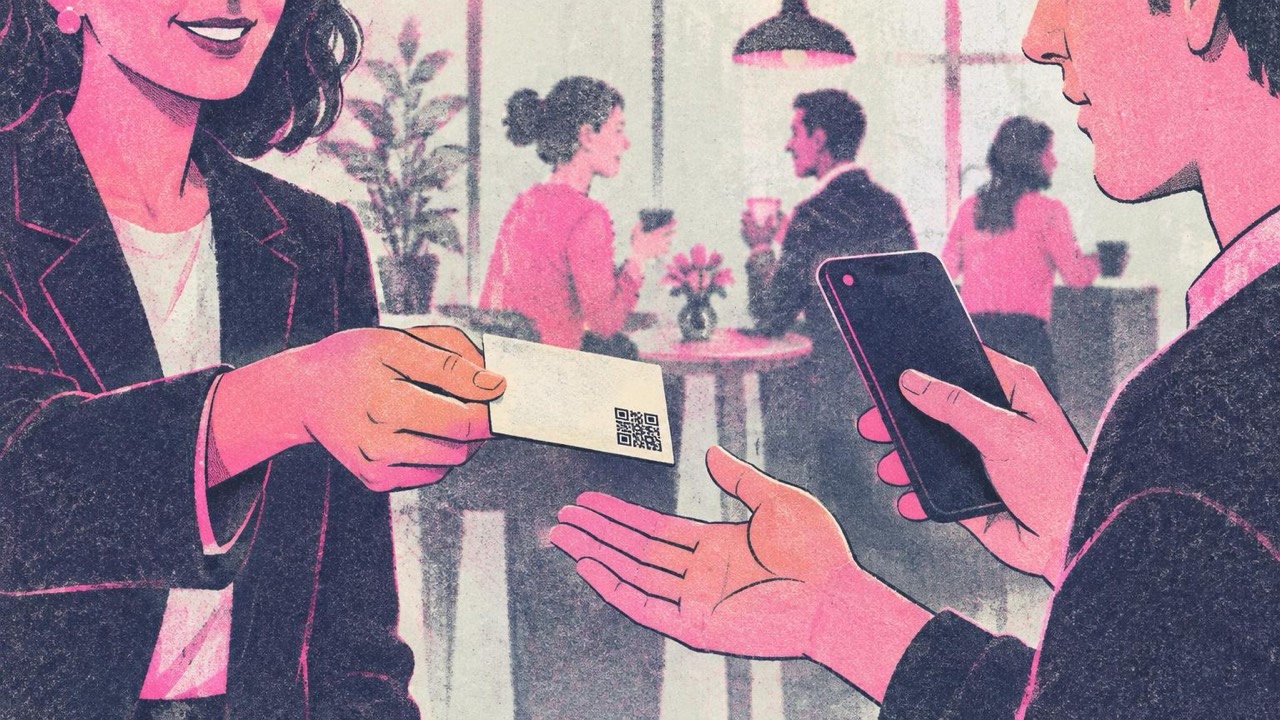
You hand over your card at a meeting. The other person thanks you, puts it in a pocket, and a week later it is in a pile on their desk. If they want to call you, they have to type your number by hand. A QR code on the card skips that step: one scan, and your contact is saved, or your portfolio is open on their screen while you are still talking.
The code takes up a few square centimetres, so the real decisions are what it should do and how to print it small without it failing.
Contact card or link: pick one job
A QR code can hold one thing. On a business card there are two good options.
A contact card (vCard). The code holds your name, phone, email and so on. When someone scans it, their phone offers to save you as a new contact, with every field filled in. Nothing to type, no typos in your email address, and it works without an internet connection. Make one with the contact card generator.
A link. The code opens a web page: your LinkedIn profile, your portfolio, a booking page or your company site. This is better when the work speaks for you, as with designers, photographers, architects and consultants. For LinkedIn you can type your username into the LinkedIn QR code generator; for any other page, paste the address into the main generator.
A simple way to decide: if you want people to call or email you, use a vCard. If you want them to look at something first, use a link. Many people put a vCard on the card and add their website as one of its fields, which covers both.
How much to put in a vCard
A vCard stores every character inside the code itself. The more you type, the more small squares the code needs, and the smaller each square gets when the code is printed at business card size. At 2 cm wide, a crowded code may still scan on a new phone in good light and fail on an older phone in a dim bar.
Keep it to what someone needs to reach you:
- first and last name
- one phone number, with country code
- one email address
- company and job title
- website (short form, no tracking parameters)
Leave out the full postal address unless people really post things to you. It is often the longest field and adds the most density. The generator shows the code getting denser as you type, so you can see the effect of each field before you download.
A link usually makes a smaller code than a full vCard. If your details do not fit comfortably, link to a page you control that lists them, and put that link in the code.
Size and placement on the card
The print guide rule is that a code should be about one tenth of the scanning distance and never smaller than 2 cm (0.8 in). A business card is scanned from about 20–25 cm, so 2–2.5 cm wide is the right range. Going below 2 cm is the most common reason card codes fail.
Leave a light margin around the code, at least as wide as four of its small squares. Do not let the designer run a pattern, a border line or the card edge right up to it.
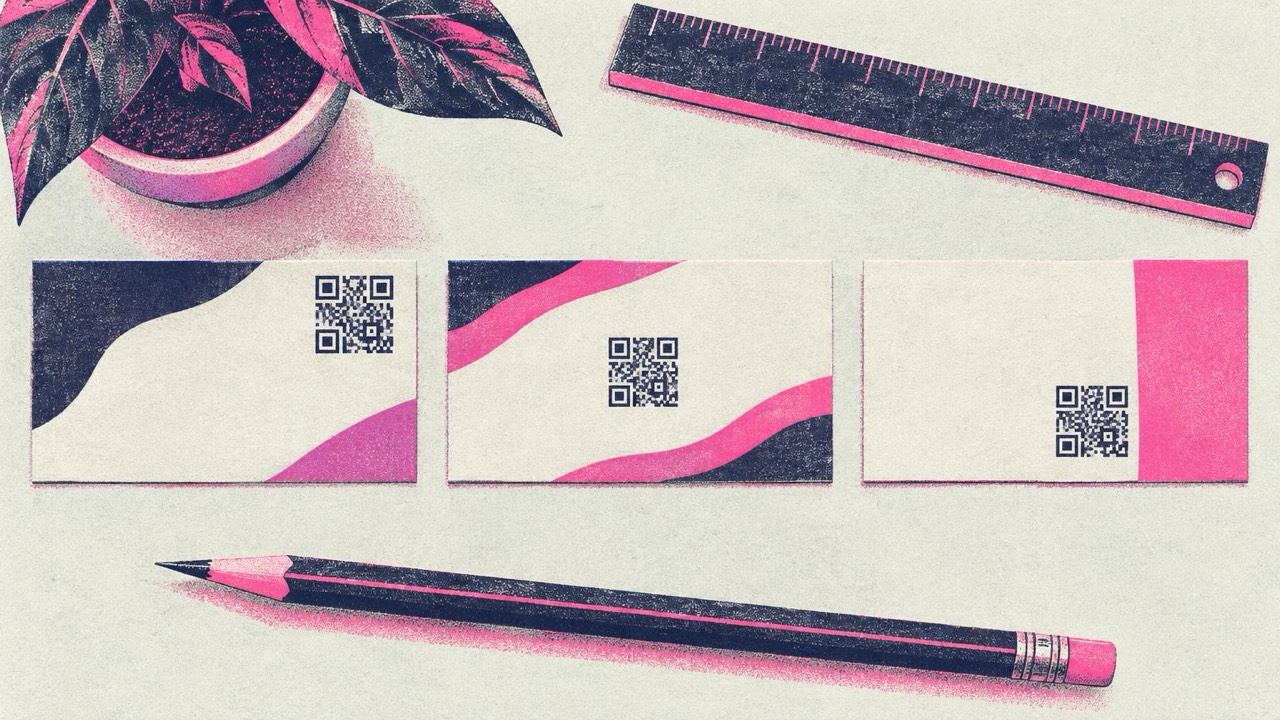
Front or back? The back is usually better. The front carries your name and logo and gets crowded quickly; the back has room for a code with a proper margin and a short line of text beside it. Put the code on the front only if the card is minimal and the code is the main way you want people to reach you.
Add a few words next to it so people know what happens when they scan: “Save my contact”, “See my portfolio” or “Connect on LinkedIn”. Without them, many people will not bother.
Brand colours, logo and style
You can match the code to your card, as long as it stays readable.
- Dark on light. Use your darkest brand colour for the code and keep the background light. A navy, dark green or deep red code on white scans fine. Light grey, pastel or yellow codes do not.
- No inverted codes. A white code on a black card looks sharp but many phones struggle to read it. If your card is dark, put the code on a light panel.
- Logo in the middle. The generator lets you add a logo under Customize. It switches on High error correction, which lets the code survive part of it being covered. Keep the logo small: at 2 cm, a big logo leaves too few squares to read.
- Styles. Rounded or dot patterns are fine, but at business card size simpler shapes are safer than very decorative ones.
The generator checks each design with your browser’s own QR reader as you edit and warns you if a colour, logo or style makes it hard to read. Download SVG for the print shop: it stays sharp at any size.
Mistakes to avoid
- Printing a link you might change. A printed code cannot be edited. If you change jobs, phone numbers or usernames, the code is wrong for every card in the box. If your details change often, point the code at a page you control and update that page instead.
- Too much in the vCard. Two phone numbers, three emails and an address make a dense code that fails at 2 cm.
- Glossy or textured finish. Gloss and spot UV reflect light; heavy texture breaks the squares. Matte paper scans best.
- Skipping the test. Ask the printer for a proof, or print one card on your own printer at actual size, and scan it with two or three different phones.
Checklist
- One job for the code: contact card or link
- vCard holds only name, one phone, one email, company, title, website
- Code at least 2 cm wide, with a clear light margin
- Short call to action next to it
- Dark code on a light background; small logo if any
- SVG sent to the printer, matte finish
- One printed proof scanned with several phones before the full run