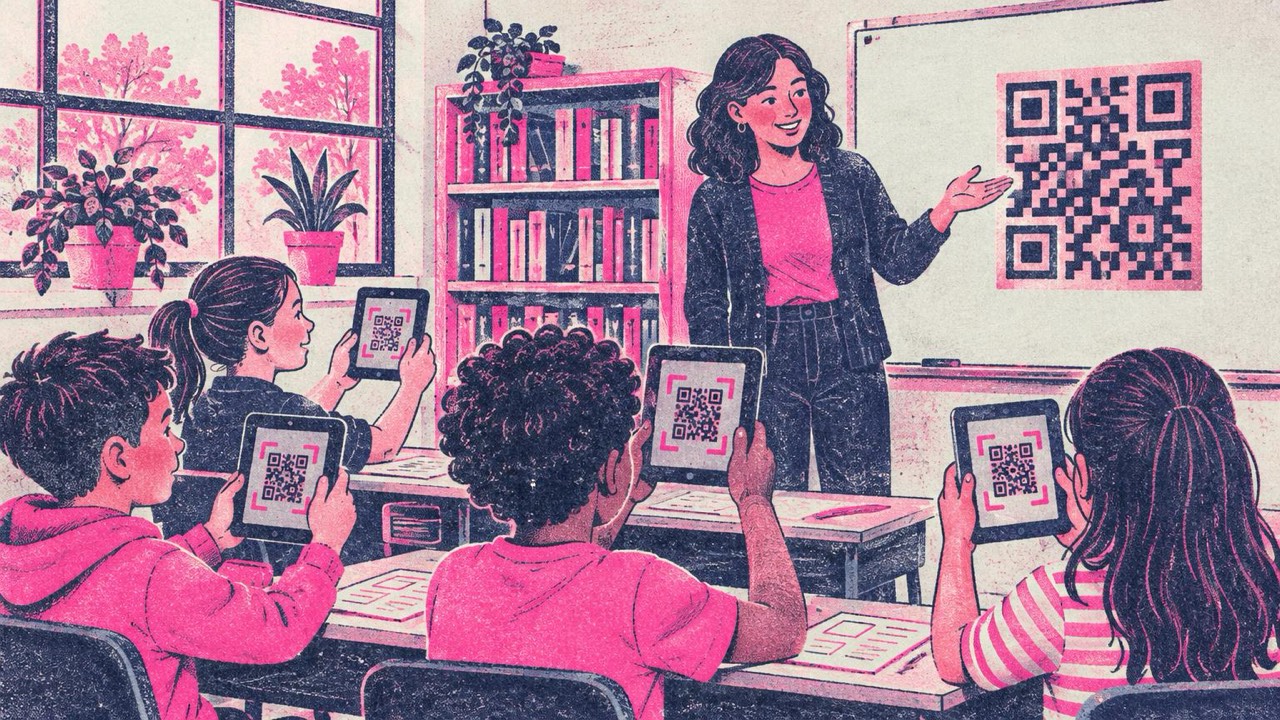
You write a video link on the board. Two pupils mistype it, one lands on a different video, and the lesson has stalled before it starts. A QR code on the board or on the worksheet removes that step: everyone points a tablet or phone at it and opens the same page.
Codes made with this generator are free, have no watermark and never expire, so a worksheet you print this year still works next year. Here are the uses that save teachers the most time, and how to make them work in a real classroom.
Eight ideas that work
1. Worksheets that link to a video or audio
Put a small code next to a task: a listening exercise for a language class, a short science demonstration, a pronunciation clip. Paste the link into the generator and drop the code into your document.
2. Self-check answer keys
Print a code at the bottom of the worksheet that opens the answers. Pupils finish, check, and correct their own work while you help those who are stuck. The code can hold plain text as well as a link, so a short answer list fits in the code itself, with no web page needed.
3. Homework instructions
A code on the homework slip opens the full instructions, the rubric or the class page. Parents can scan it too, which cuts down on “I didn’t know what to do” the next morning.
4. Class Wi-Fi for guests
Visiting speakers, student teachers and parents at an open day often need the guest network. A Wi-Fi QR code on the door lets them join without asking you for the password. Use the guest network only, never the staff one, and check with your IT team first.
5. Library shelves and book corners
A code on a shelf label can open a book trailer, a pupil’s review or an audiobook version.
6. Student projects and posters
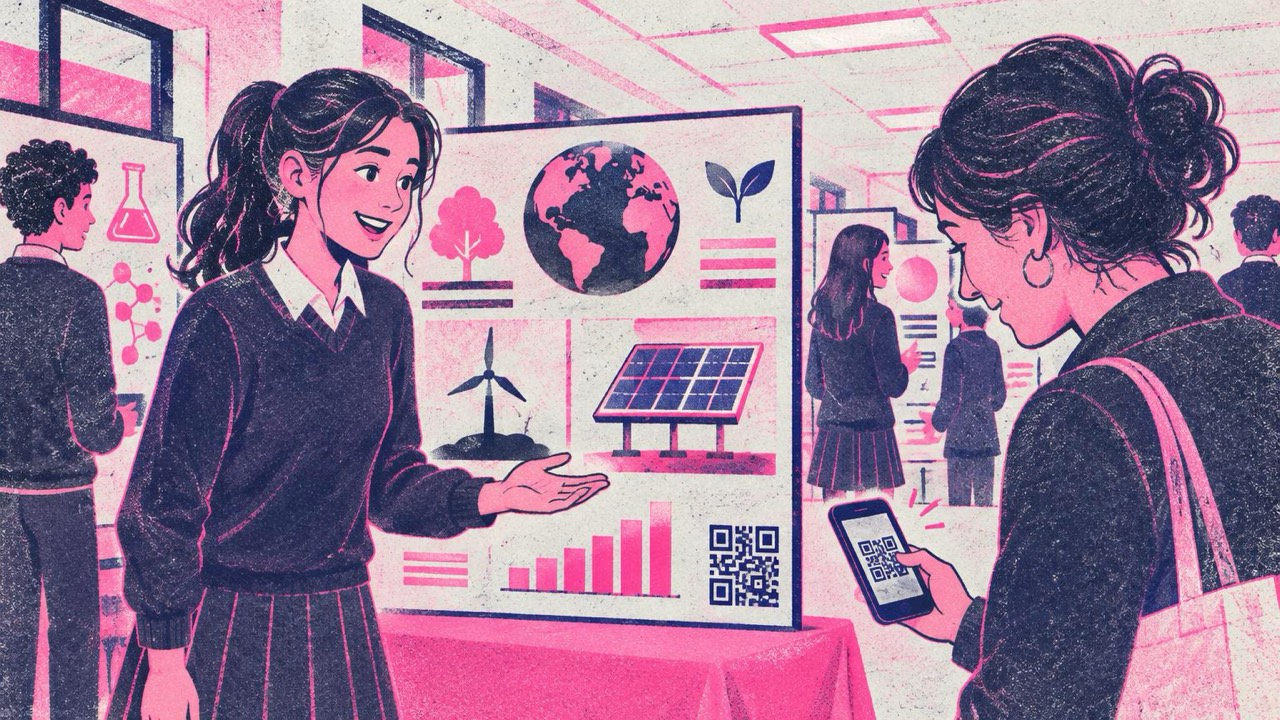
A poster has room for a title, a few diagrams and a conclusion. A code in the corner can open the full presentation, a video of the experiment or a data sheet. At a project fair, visitors scan what interests them.
7. Parent evening contact cards
Hand out a card with a code that saves your school email and office phone as a contact, made with the contact card generator. Use your school details, not your private number.
8. Stations and scavenger hunts
Place codes around the room or the school grounds, each opening a question or a clue. Pupils move, discuss and write answers on paper. It works well for revision before a test.
Privacy and age: link to approved content
A QR code hides where it goes until someone scans it. In a classroom that puts the responsibility on you.
- Link only to content your school has approved: the school’s learning platform, its video channel, or resources you have checked. Avoid links that pass through ad-heavy sites or open comment sections.
- For young pupils, open videos in a safe player or on the school platform, so the next suggested video is not a surprise.
- Do not put personal data into codes. A code holding a pupil’s name and phone number can be read by anyone who photographs the poster.
- Teach pupils to check before they open. Most phones show the address first. That habit protects them outside school too.
Codes made on this site are generated in your browser. What you type is not sent to a server, and the code links directly to your page, with no redirect or tracking in between.
Links change, printed codes do not
Static codes cannot be edited after printing. If a video might move, point the code at a page you control, such as a page on the class site that links to the video, and update that page instead.
For pupils without a camera app
Not every school device has a camera, and some laptops and desktop computers have none. The site’s QR code reader helps here: pupils upload a screenshot or photo of the code, or paste an image, and the link appears on screen. The image is read in the browser and never uploaded.
Printing codes pupils can scan
Size depends on where pupils sit. The print guide gives the rule: at least one tenth of the scanning distance, and never under 2 cm.
- Worksheet or homework slip, scanned on the desk: 2.5–3 cm.
- A4 poster on the wall, scanned from a step or two away: 10–15 cm.
- Code on the whiteboard or projector for the whole class, read from the back row 6–8 m away: at least 60 cm. For a projected code, make it fill most of the screen.
Print dark on light, keep the white border around the code, and choose “Actual size” in the print dialog. A photocopied code loses sharpness each time, so print fresh copies from the original file rather than copying a copy. The print view can lay out a sheet of stickers if you want to label several books or stations at once.
Add a short label next to each code, such as “Watch the experiment” or “Check your answers”. Pupils scan faster when they know what will open.
Mistakes to avoid
- Codes that open a login page pupils cannot pass. Check the link from a pupil account, not your own.
- Long URLs from a search result. They make dense codes that fail on old tablets. Copy the clean address.
- Too many codes on one page. Pupils scan the wrong one. One code per task works best.
- Untested printouts. Print one copy and scan it with a school tablet before you copy thirty.
Checklist
- Every code links to school-approved content, checked from a pupil account.
- No personal data in any code; school contacts only.
- Links that may change go through a page you control.
- Size fits the distance: 2.5–3 cm on paper, 10–15 cm on posters, much bigger on the board.
- A short label tells pupils what the scan opens.
- The reader is bookmarked on devices without a camera.
- One printed copy tested before you print the class set.