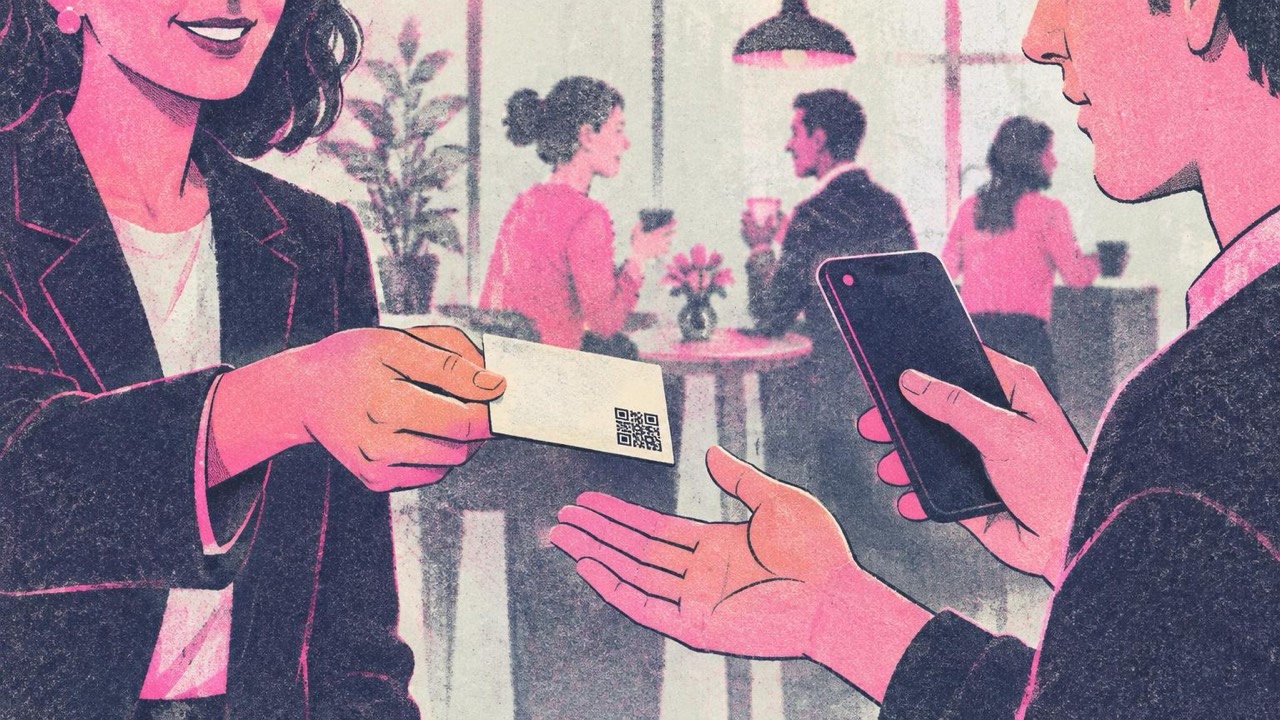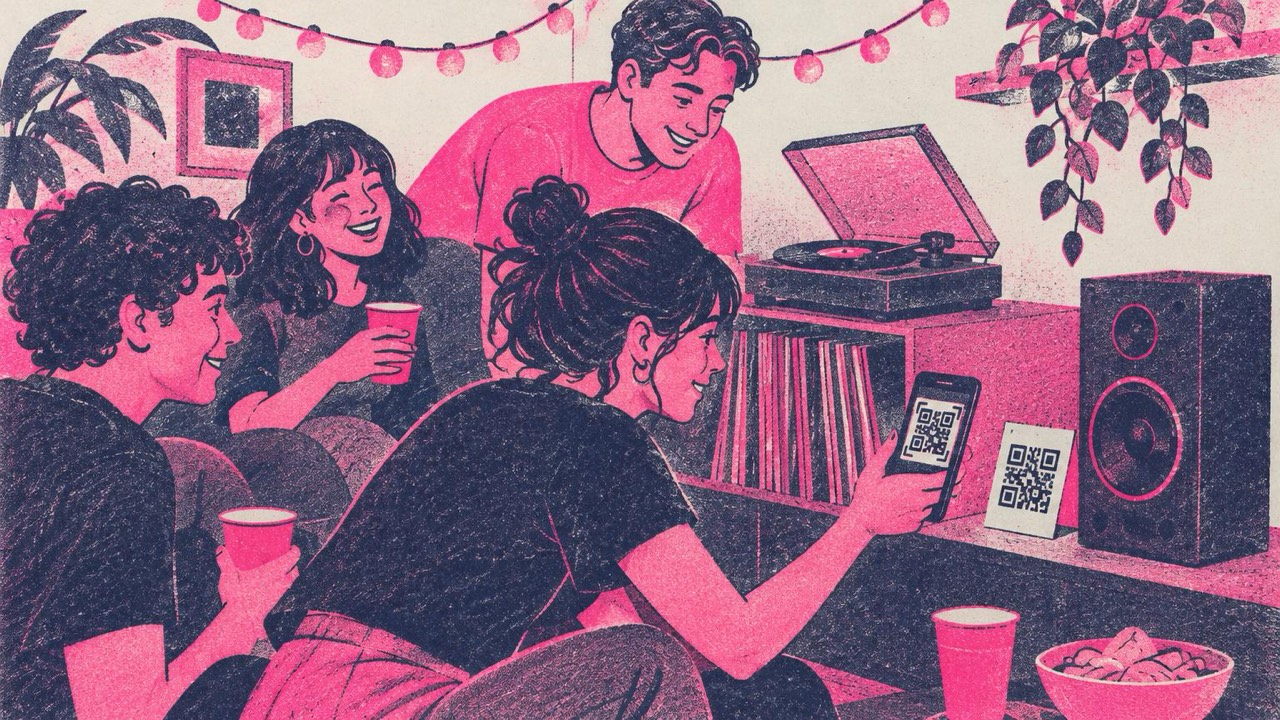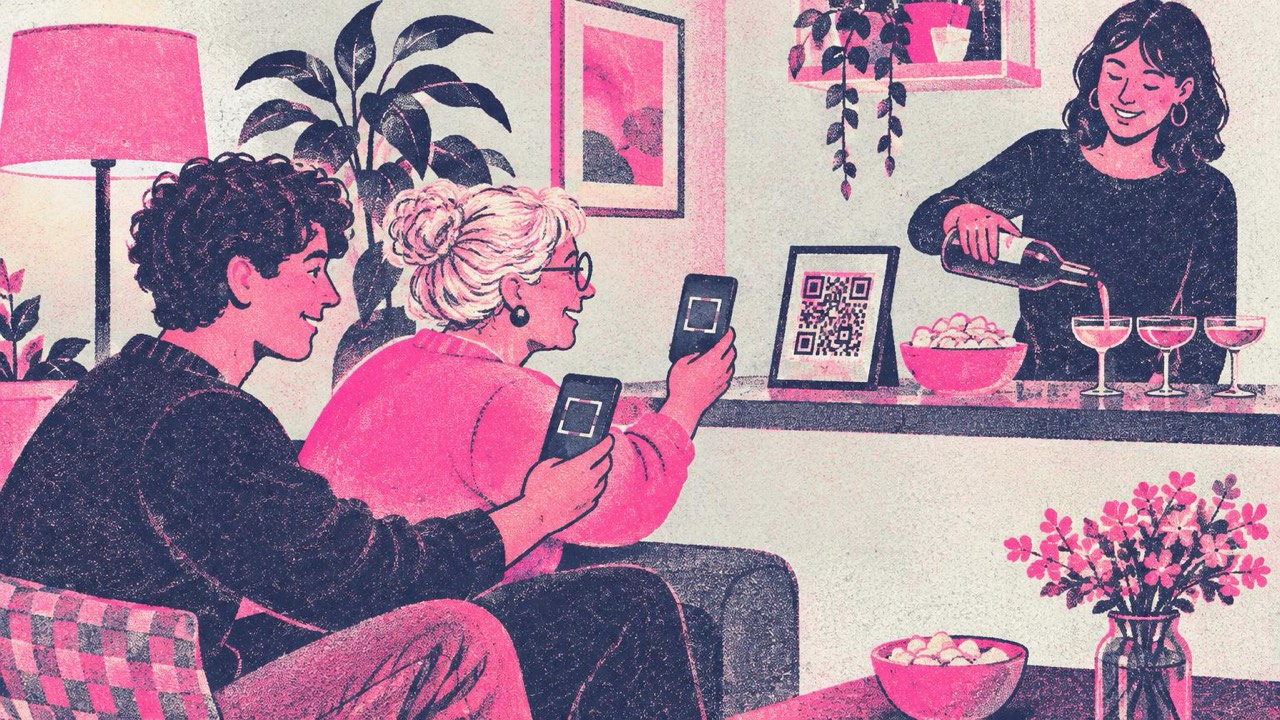
Friends arrive, the first question is “What’s the Wi-Fi?”, and you end up reading a 16-character password off the bottom of the router, twice. A Wi-Fi QR code ends that. Guests open the camera, scan, tap “Join”, and they are online. It works with the built-in camera on iPhone (iOS 11 and later) and Android (Android 10 and later), no app needed.
What goes into a Wi-Fi QR code
The Wi-Fi QR code generator asks for four things:
- Network name (SSID). Type it exactly as your phone shows it in the Wi-Fi list, including capitals, spaces and any “-5G” ending.
- Password. Exactly as set on the router. Capitals matter.
- Security. WPA/WPA2/WPA3 for almost every home and office router. WEP only on very old equipment. “None” for an open network.
- Hidden network. Tick this if your network does not broadcast its name (more below).
The code is made in your browser, and your password is never sent to our server. But remember what a Wi-Fi code is: the password, printed. Anyone who scans it can join.
Situations where it helps
Home and parties
Put a framed code on the kitchen counter or by the coat hooks. For a party, a table tent next to the drinks works well. Regular visitors can save the code as a photo and never ask again.
Picnics and garden parties
If you share your phone’s hotspot at a picnic, a barbecue or a kids’ football match, make a code for the hotspot. The hotspot name is usually your phone’s name, such as “Anna’s iPhone”, and the password is in the hotspot settings. Check both before you make the code: on some phones the hotspot name changes when you rename the phone, and the code then stops working. Print it as a small sticker on your phone case or keep a screenshot to show on another phone.
Holiday rentals and Airbnb
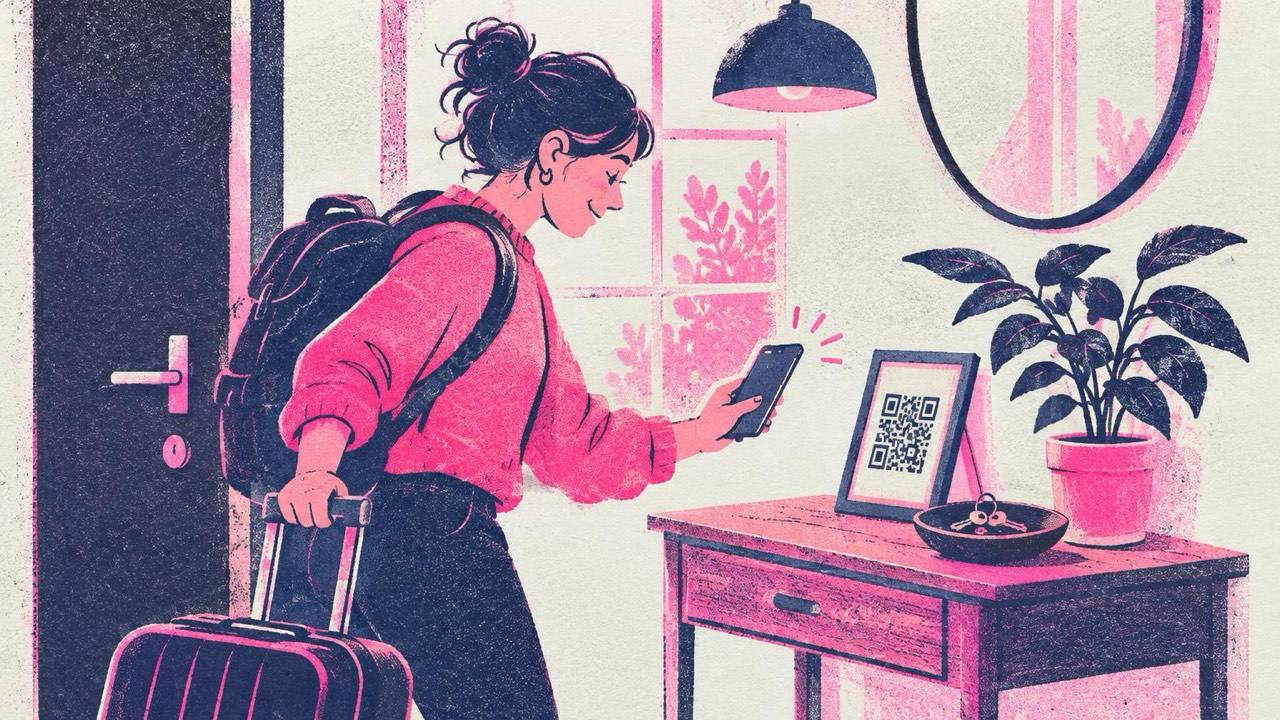
Guests arrive tired and want the Wi-Fi first. A framed code by the entrance, in the welcome folder or on the fridge saves you messages at midnight. Pick the sign layout in the print option. It puts the network name and password as small text under the code, so a guest whose phone does not scan can still type it.
Small offices and waiting rooms
Clients, interviewees and visiting freelancers all need the Wi-Fi. A code at reception or on the meeting room table is faster than a sticky note, and it does not get lost.
Guest, hidden and open networks
Use a guest network if your router has one. Most home and office routers can run a separate guest network. Guests get internet but cannot see your computers, printers or smart home devices. Make the code for the guest network, not your main one. It also means you can change the guest password without reconnecting all your own devices.
Hidden networks work, with one tick. If your network does not broadcast its name, tick “Hidden network”. The phone then knows to look for it even though it is not in the list. Hiding the name does not make a network secure on its own; the password does that.
Open networks need no password. Choose “None”. The code still saves people from finding the right network among the neighbours’.
When the password changes, make a new code. A Wi-Fi code contains the password itself. There is no server in between, so when you change the password, the old code stops working. Make a new code and replace the printed one. This is why a guest network helps: change its password between rentals or after a party, print a new card, and your own devices are not affected.
If you print the network name and password under the code, those change too. Throw away the old cards so nobody keeps trying an old password.
Put it where only guests see it
Anyone who can scan the code can join your network. Place it accordingly:
- Yes: inside the house, inside the rental, in the welcome folder, on the meeting room table, behind the reception desk.
- No: a window facing the street, the front door, a photo you post online, a listing photo of your rental.
If you post a picture of your living room, check that the framed code is not in it. A phone can read a code from a photo.
How big to print
The rule from the print guide: make the code at least one tenth of the scanning distance, and never smaller than 2 cm (0.8 in).
- Sticker on a phone case or a router: 2.5–3 cm (1–1.2 in)
- Table tent or framed card on a counter: 5–7 cm (2–2.8 in)
- Sign on a wall, scanned from a metre or two: 10–15 cm (4–6 in) or more
The generator’s print option has a sign, a table tent and sticker sheets. Print at 100% (“Actual size”), keep a dark code on a light background, and leave the white border around it. Matte paper scans better than glossy, which matters if you put the card in a frame with glass.
Checklist
- Use the guest network if your router has one
- Copy the network name and password exactly, capitals included
- Choose the right security type; tick “Hidden network” if needed
- For a hotspot, check the name and password in the phone’s settings
- Scan the printed code with an iPhone and an Android phone
- Place it where only guests see it, never in a street-facing window or online photo
- Changed the password? Make a new code and replace every printed copy