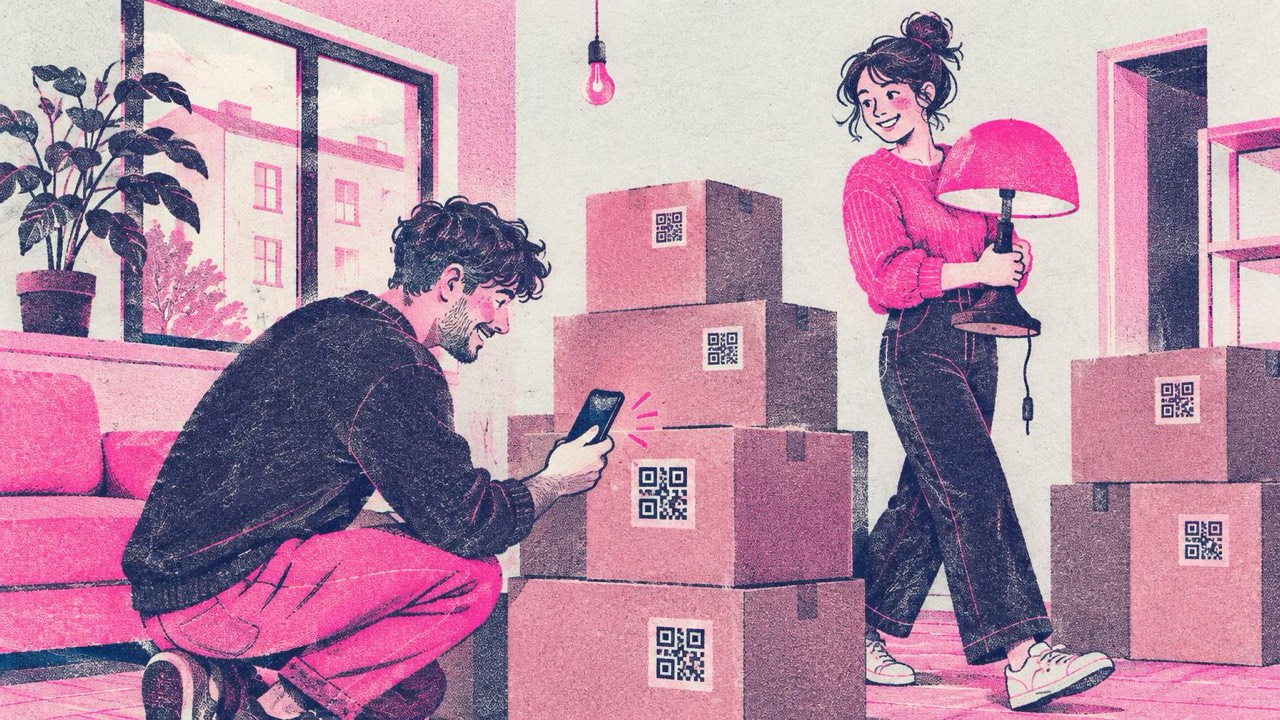
It is your first evening in the new flat. There are thirty boxes, eight of them say “Kitchen”, and you need the kettle and the phone charger. You open five boxes before you find either. A QR code on each box, opening a list of what is inside, turns that search into a scan.
The same idea works long after the move: storage bins in the attic, the manual for the boiler, the Wi-Fi for guests.
Two ways to store the contents list
Plain text inside the code
The QR code generator takes any text, not only links. Type a short list straight into it:
Box 12 – Kitchen. Kettle, mugs, tea, coffee, toaster, phone chargers.
Scan it with the phone camera and the text appears on screen. No internet, no app, no account. That matters on moving day, when the router is still in a box and mobile data in the new place may be patchy.
Keep the list short. The more text you type, the denser the code gets, and a dense code needs a bigger sticker to scan. A line or two per box is the sweet spot. If the generator says the text is too long, you are writing an inventory, not a label.
A link to a shared list
For a big move, or when several people pack, keep the full inventory in a shared note or spreadsheet, one row per box. Most spreadsheet and note apps let you copy a link to a single note, sheet or range. Put that link in the code.
The advantage: you can edit the list after printing. The code stays the same, because it only stores the address of a page you control. The catch: you need a connection to open it, and the note must be shared so that whoever scans it has access.
A good mix is both: a short text code on the box for the essentials, and the full list in the spreadsheet.
Number every box too
A code needs a phone. A number does not. Write a big box number and the room on two sides of every box, next to the code. Then:
- the movers know where to carry it without scanning anything
- your list in the spreadsheet matches the box (“Box 12”)
- you notice right away if box 17 is missing
Put the number in the text code as well, so a scan and the side of the box always agree.
Around the house after the move
Storage bins in the attic, garage and basement
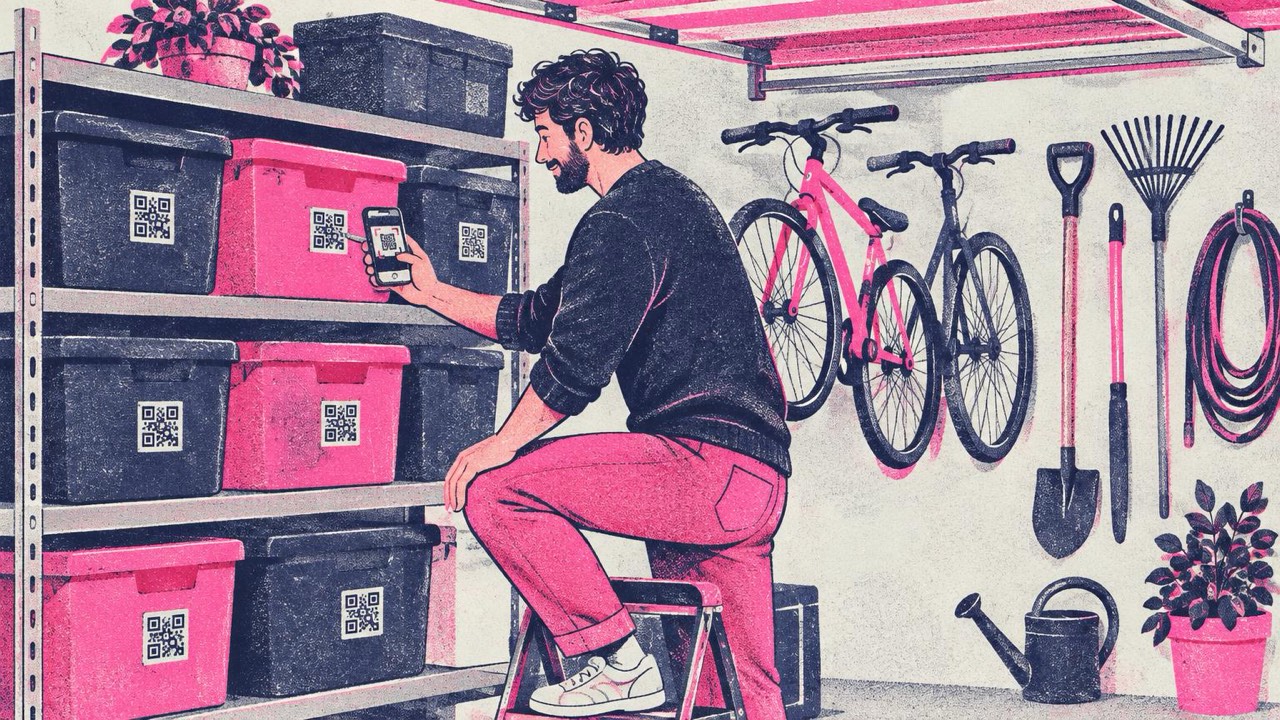
Christmas decorations, camping gear, baby clothes in three sizes, cables you might need one day. Bins on high shelves are the worst to search. A sticker on the front of each bin with a text list saves you climbing the ladder to look inside. When the contents change, print a new sticker; it takes a minute.
Manuals and warranties on the appliance
The boiler, the washing machine, the dishwasher. When it shows an error code, the manual is never where you left it. Find the PDF manual on the maker’s website, copy the link, and put a small code on the side or inside the door of the appliance. For the warranty, keep a scan of the receipt in your own cloud folder and link to that. Write the model number next to the code, so you can still search for it if the maker moves the PDF one day.
Guest Wi-Fi on the fridge
Make a code with the Wi-Fi QR code generator and put it on the fridge or by the door. Guests scan and join, nobody spells out the password. Use the guest network if your router has one. The Wi-Fi article has the details.
A household sheet for babysitters and house-sitters
Put a code on the fridge that opens a page you control, such as a shared note with bedtimes, allergies, where the first aid kit is, the vet’s number and your phone numbers. You can update the note any time without reprinting.
What does not belong there: alarm codes, door codes, safe combinations or bank details. A QR code can be read by anyone who sees it, including in the background of a photo. Tell those things to the sitter in person or send them privately.
Printing labels and stickers
In the generator, open Print and choose Stickers. You get a sheet of codes that you cut along the dashed lines. Print on plain paper and tape it on, or use sticker paper. Make one code per box, and print each sheet at 100% (“Actual size”), not “Fit to page”.
How big? The rule from the print guide is one tenth of the scanning distance, never under 2 cm. For boxes and bins you scan from about 30–40 cm, so 3–4 cm (1.2–1.6 in) is right. Go a bit bigger if the code holds a long list.
A few practical tips:
- Stick the code on the side, not the top. Boxes get stacked, and tops disappear.
- Avoid tape over the code. Shiny tape reflects light and can stop the camera from reading it. Matte paper scans best.
- Black on white. Brown cardboard is fine around the sticker, but the code itself needs a light background and its white border.
- Test one sticker with your phone before you print fifty.
If you have a code but cannot remember what it says, the QR code reader on this site reads it from a photo too.
Checklist
- Short text list in the code for each box, or a link to a shared list you control
- Box number and room written on two sides, matching the list
- Shared lists set so the people who scan can open them
- Stickers 3–4 cm, printed at 100%, on the side of the box
- One test scan before printing the whole sheet
- Manual links and model numbers on the appliances
- Guest Wi-Fi code on the fridge, guest network if you have one
- Babysitter sheet as a page you control, with no alarm or door codes