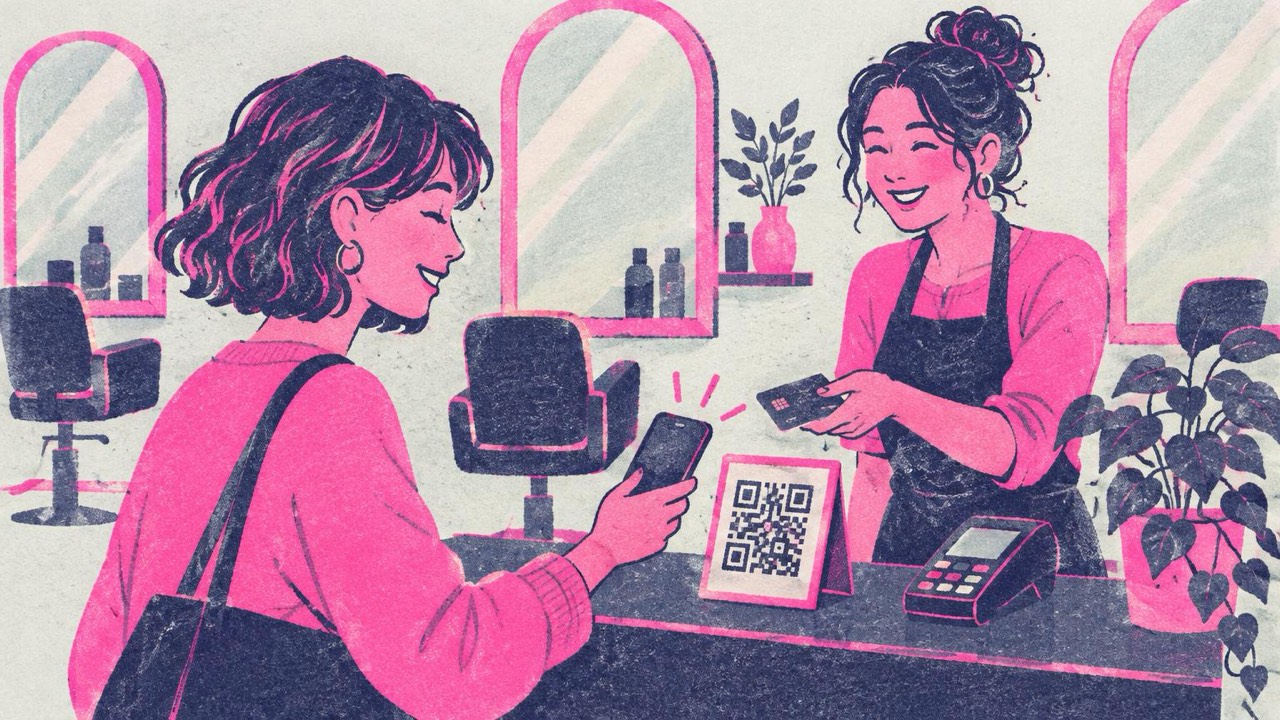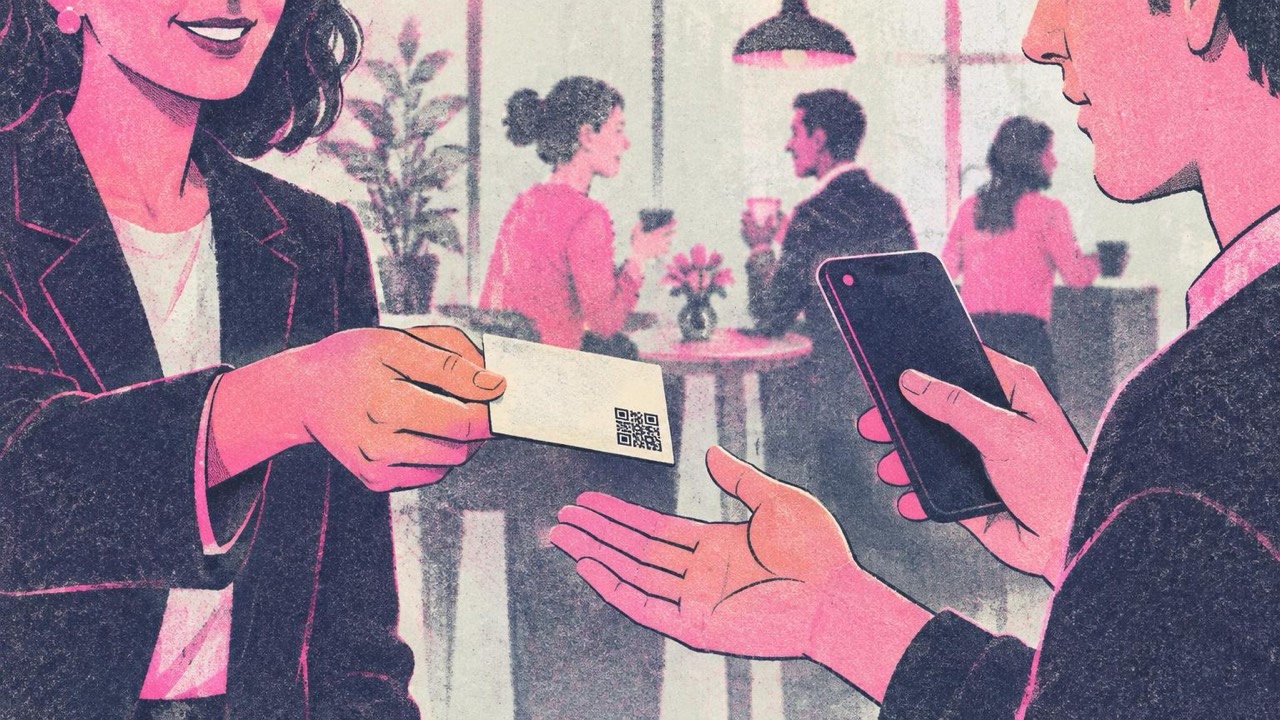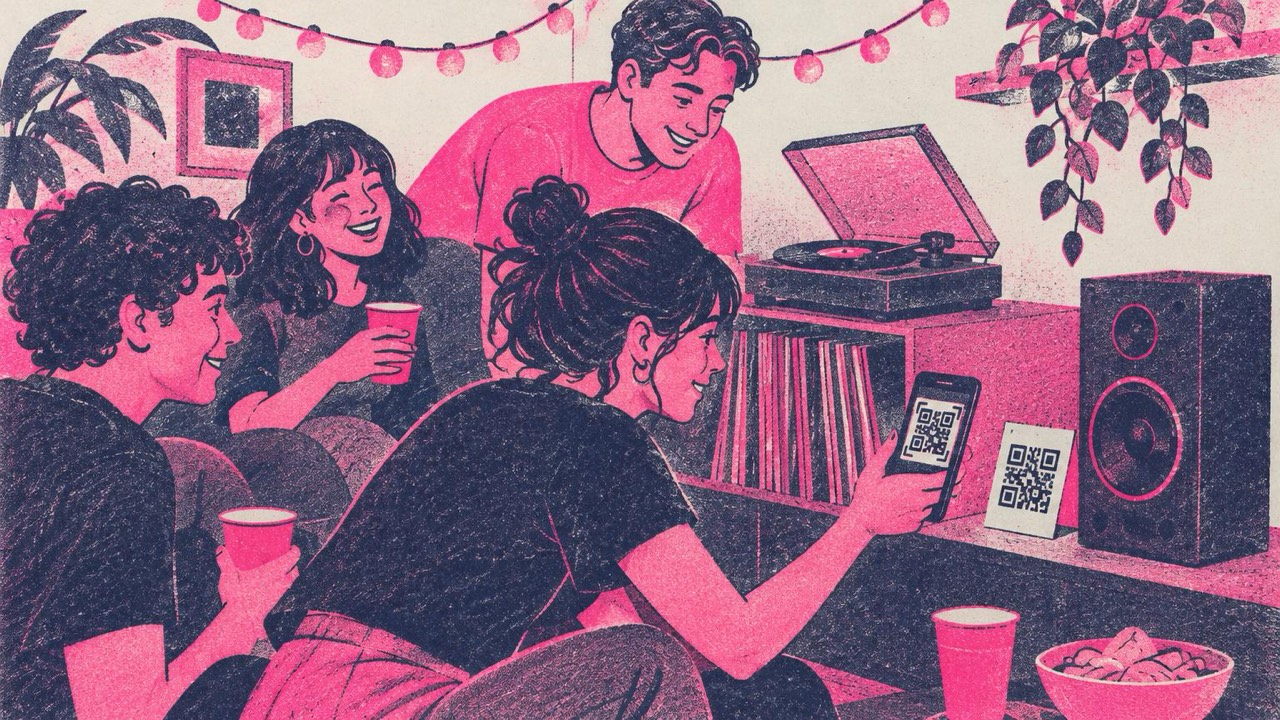
You have spent an evening building the perfect playlist for a party, a wedding or a road trip. Now you want other people to hear it, or add to it, without sending a link in five different group chats. Print a QR code, put it where people will see it, and anyone with a phone camera can open the playlist in a couple of seconds.
How it works
Every music service has a share button. In Spotify, Apple Music, YouTube Music, Deezer, Tidal, SoundCloud or Bandcamp, open the playlist, album or song, tap Share and choose Copy link. Paste that link into the main generator and download the code. That is it.
The generator encodes any link, so it does not matter which service you use. If the music is on YouTube, the YouTube QR code generator takes a channel or video link directly.
When someone scans the code, their phone opens the link. If they have the app installed, it usually opens there; if not, it opens in the browser, where most services let people preview or play the music.
QR code or Spotify Code?
Spotify has its own scannable “Spotify Codes”, the sound-wave bars you can generate in the app. But they only scan inside the Spotify app. Someone who uses Apple Music, or who just points their phone camera at it, gets nothing. A standard QR code opens with the built-in camera on almost any phone, and it works for people who do not use Spotify at all. If your audience is mixed, as it is at most parties and weddings, a QR code is the safer choice.
Six ways to use a playlist QR code
1. Party invitations
Put a code on the invitation that opens the party playlist. Guests get in the mood before they arrive, and if you make it a collaborative playlist, they can add their own songs.
2. Wedding dance-floor requests
Instead of a request sheet that the DJ cannot read in the dark, make a collaborative playlist in Spotify or Apple Music and put its invite link in a QR code on the tables or on a sign near the dance floor. Guests scan and add songs; you or the DJ check the list during the evening. Agree with the DJ in advance whether they will play from it directly or use it as a request list.
3. Band posters and flyers
A gig poster can link straight to your latest album or a “best of” playlist, so people who stop to read can listen before deciding to come. Posters are read from a metre or two away, so the code needs to be bigger: see the size section below.
4. Merch, stickers and CD sleeves
T-shirts, tote bags, stickers and the back of a CD sleeve or vinyl insert can all carry a code linking to the album or your artist page. For merch, link to a page you control, such as your band website or a link page that lists every service, so people on any platform can listen and you can update it when the next album comes out.
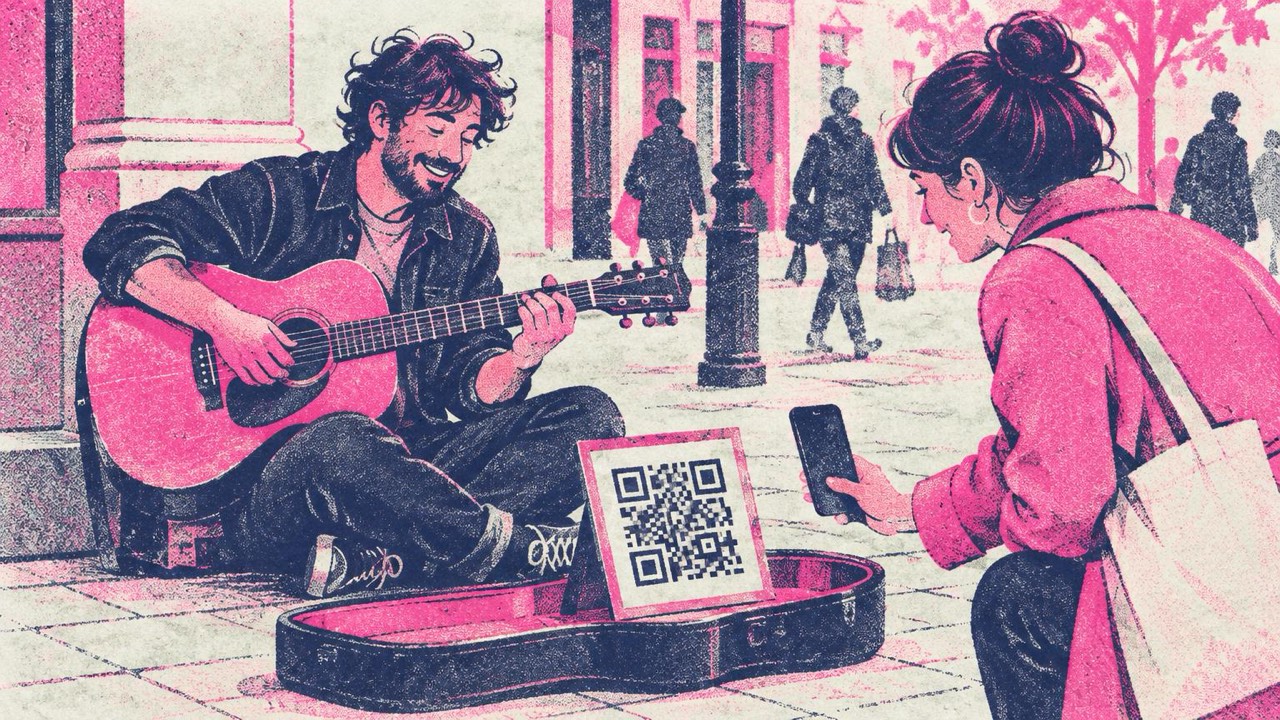
5. A busker’s sign
People who stop to listen often want to hear more after they walk on. A sign in your open guitar case with a QR code to your music lets them follow you on the spot. Use a sign at least 10 cm wide, since people scan it from a step or two away while standing.
6. A mixtape-style gift card
Make a playlist for a birthday, an anniversary or a friend who is moving away, and put the code on a handwritten card. It is a modern mixtape that fits in an envelope. The Photo QR option lets you put a photo behind the code for an extra personal touch.
Cafés and shops can do the same with a small table tent showing the “now playing” playlist, so customers who ask “what is this song?” can find it themselves.
What to put in the code
- Use the share link, not the address bar. The share link from the app is the one built to open correctly on other devices.
- Make the playlist public. A private playlist will show an error to everyone but you. For collaborative playlists, check that the invite link is still valid before you print.
- Strip extra parameters. Share links often end with
?si=…or similar tracking text. You can usually delete everything from the?onwards and the link still works. A shorter link makes a simpler code. - Think about changes. The code is static and never expires, but it cannot be edited after printing. Changing the songs inside a playlist is fine, because the link stays the same. If you might want to point to a different album later, link to a page you control instead.
Printing it so it scans
The print guide rule: a code should be about one tenth of the scanning distance and never smaller than 2 cm (0.8 in).
| Where | Scanning distance | Code width |
|---|---|---|
| Invitation, gift card, CD sleeve | 20–30 cm | 2–3 cm |
| Table card at a wedding or café | 30–50 cm | 3–5 cm |
| Busker’s sign | about 1 m | 10 cm |
| Gig poster | 1–2 m | 10–20 cm |
Keep the code dark on a light background. Concert posters love black backgrounds and neon colours; put the code on a white panel instead of inverting it. A small logo or album cover in the middle is fine: the generator switches on high error correction when you add one. It also checks each design with your browser’s QR reader and warns you if it becomes hard to read.
Add a short line next to the code, such as “Add your song”, “Hear the album” or “Tonight’s playlist”, so people know what they will get.
Checklist
- Share link copied from the app, extra parameters removed
- Playlist set to public (or collaborative invite link still working)
- QR code rather than a Spotify Code if not everyone uses Spotify
- Size at least one tenth of the scanning distance, never under 2 cm
- Dark code on a light background, with a clear margin
- A few words telling people what the scan does
- Tested with two or three phones, with and without the app installed