
You are at a job fair. The recruiter has a stack of fifty printed CVs and two minutes for each person. They read your name, skim your last job, and look up. If the top corner of your page has a small QR code, they can open your portfolio right there, on their phone, while you are still standing at the table.
That is the point of a QR code on a resume: it turns a sheet of paper into a way to see your work, as long as you choose the right link and print it properly.
When a QR code helps, and when it does not
A QR code only does something when the CV is on paper and someone has a phone in hand:
- Job fairs and networking events, where you hand out printed copies.
- Interviews, where the panel often has your CV printed in front of them.
- Creative and technical roles, where the work matters more than the list: designers, photographers, architects, writers, developers, video editors.
- Speculative applications dropped off in person at a shop, studio or restaurant.
It helps much less when you apply online. Most employers run applications through an applicant tracking system (ATS), which reads the text of your file. It does not scan images, so to the ATS your QR code is just a picture with nothing in it.
So the rule is simple: always write the link as text too. Put the short address next to the code or in your contact line, for example janedoe.com/portfolio or linkedin.com/in/janedoe.
What to link
Pick the one page that best shows what you can do.
- Your portfolio. For creative roles this is usually the best choice.
- Your LinkedIn profile. Good for most office roles, especially if your profile has recommendations and more detail than the CV. Type your username into the LinkedIn QR code generator.
- GitHub or a code sample. For developers, link to your profile or to one pinned project with a clear README.
- A short video introduction. A one- to two-minute video can work for teaching, sales, customer-facing or media roles. Upload it as unlisted or public on YouTube or Vimeo and paste the link into the main generator.
- Published work. Writers, researchers and journalists can link to a page that lists their articles or papers.
If you want several of these, do not try to squeeze them all in. Make one simple page you control, such as a personal site or a link-in-bio page, list everything there, and point the code at that page. You can then update the page later without reprinting anything, which matters because a static QR code cannot be changed once it is printed.
A contact card (vCard) is another option: one scan saves your name, phone and email into the recruiter’s phone. It makes most sense on a networking card you hand out alongside the CV. On the CV itself your contact details are already printed, so a link to your work usually adds more.
Placement and size
Put the code in the header, in the top right or top left corner, next to your name and contact details.
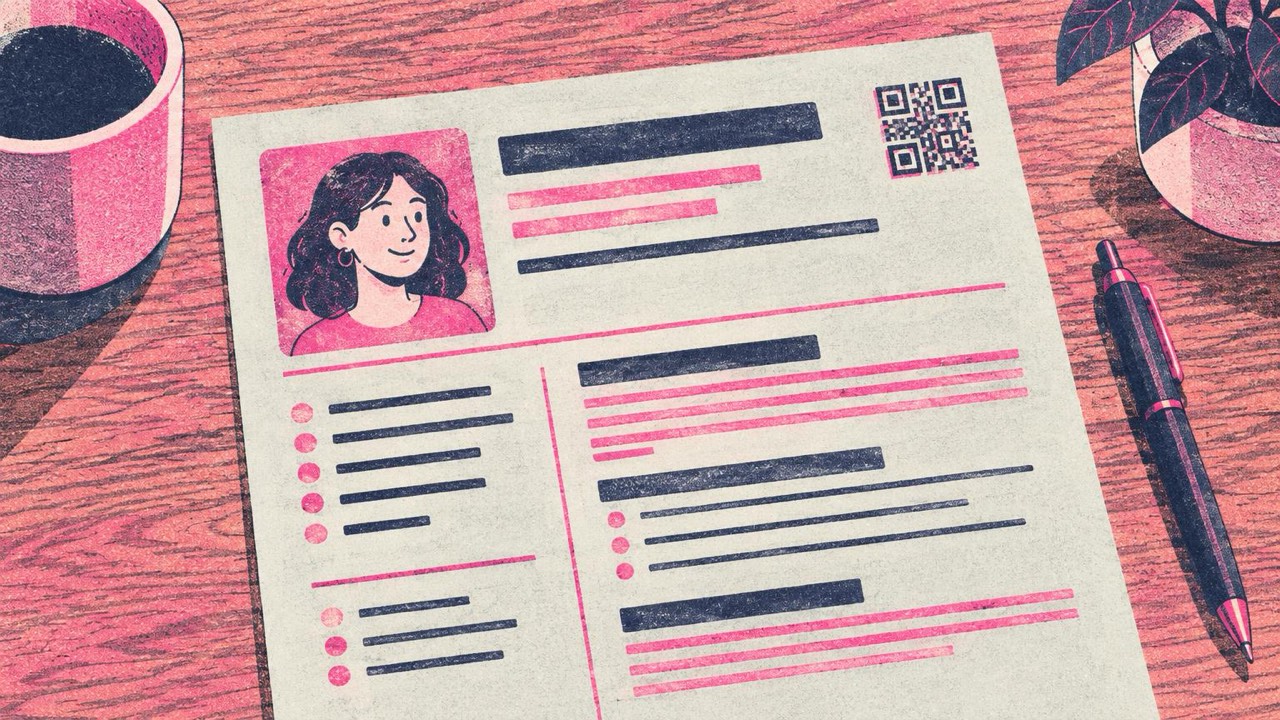
The print guide rule is that a code should be about one tenth of the scanning distance and never smaller than 2 cm. A CV is held 20–30 cm from the phone, so about 2–2.5 cm (0.8–1 in) wide is right. That is small enough to sit quietly in the corner and big enough to scan on older phones.
Leave a clear margin around it, at least four of the code’s small squares wide. Do not let a header line, a coloured band or your photo touch it.
A short label underneath helps: “Portfolio”, “Work samples” or “Video intro”. Without it, the recruiter does not know whether scanning is worth the effort.
Keep it understated
The CV is about you, not the code. A big code with a large logo looks like an advert.
- Black on white is the safe choice and always looks professional.
- One brand colour is fine if your CV already uses an accent colour. Use the darkest version of it, such as navy, dark green or deep red, on a white background. Light or pastel codes scan badly.
- No logo, or a very small one. At 2 cm there is little room to spare.
- Simple style. Square or slightly rounded modules look tidier at this size than heavy decorative patterns.
The generator checks each design with your browser’s built-in QR reader as you edit and warns you if a colour or style makes it hard to read. Download SVG if a designer is laying out your CV, or PNG for a Word or Google Docs file.
Test the destination, not just the code
A code that scans perfectly but opens a broken page does more harm than no code at all. Before you print:
- Open the link in a private browser window while logged out. If it asks for a login, the recruiter will hit the same wall.
- Check it on a phone. The recruiter will see it on a small screen, so your portfolio has to load quickly and read well on mobile.
- Do not link private documents. A Google Drive or Dropbox file shared “with specific people” will show an access request. Link to a public page you control instead.
- Remove tracking parameters and long query strings. A shorter link makes a simpler code that scans more easily.
- Scan the printed page with two or three different phones, including an older one, before you print the full batch.
Checklist
- Link to one page: portfolio, LinkedIn, GitHub, video or a page you control that lists them
- The same link also written as text, for ATS and for people reading on screen
- Destination is public, works logged out and reads well on a phone
- No private Drive or Dropbox files
- Code in the header corner, about 2–2.5 cm wide, with a clear margin
- A one- or two-word label under it
- Black or one dark brand colour on white, no big logo
- One printed copy scanned with several phones before you print the rest